Your household budget on the Home Screen
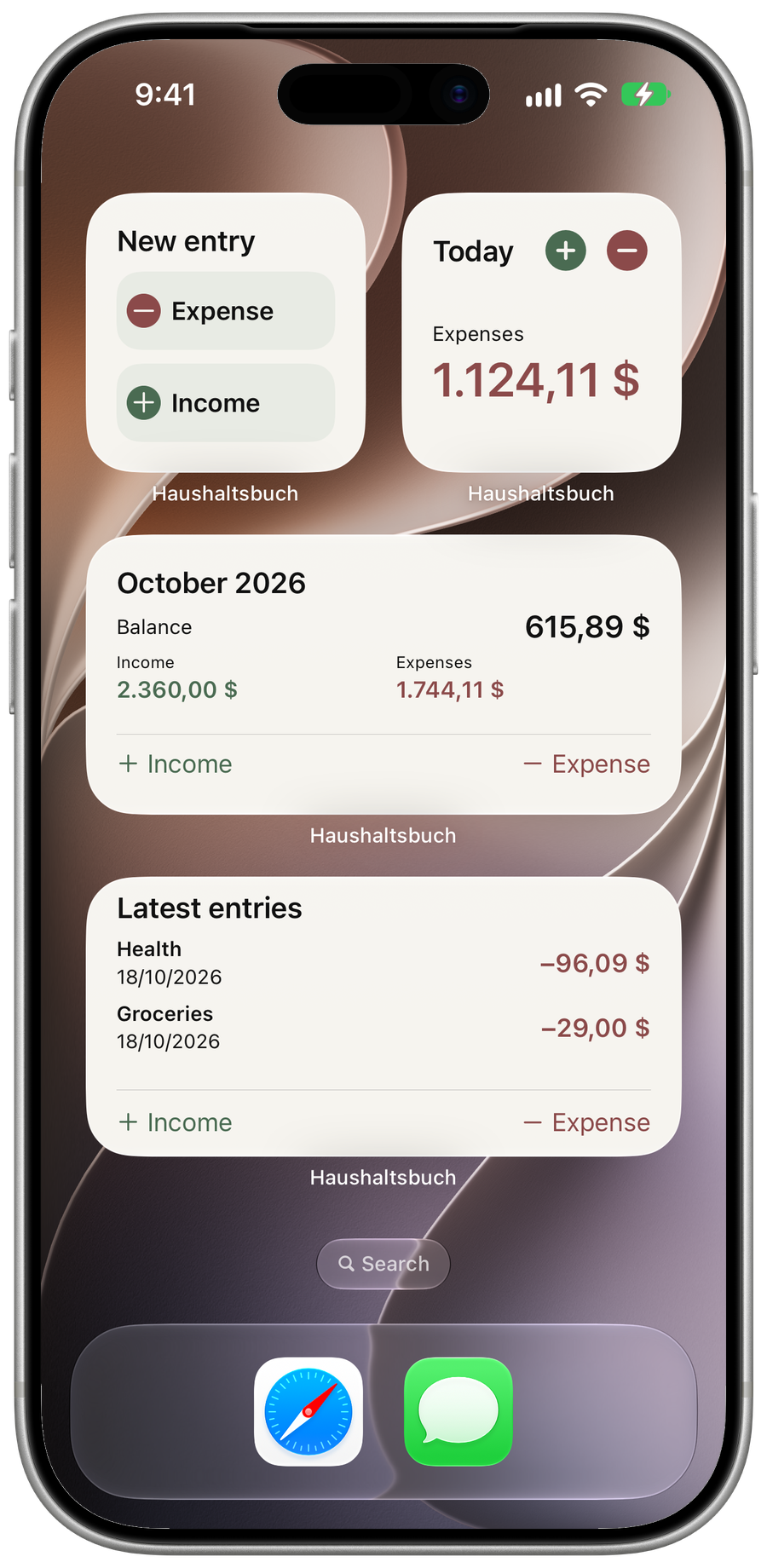
Widgets put quick entry, today’s amounts and this month on your iPhone’s Home Screen and Lock Screen. You place them yourself in iOS, and your entries stay in the app on your iPhone.
- Home Screen and Lock Screen
- Free: quick entry, Today, this month, latest entries
- Hide amounts when others can see
- Pro: weekly chart and past periods
What the widgets are for
A widget saves you the step of finding and opening the app. Tap once to start an income or expense entry, or glance at what you spent today and how the month is going.
The widgets show what the app has saved on your iPhone. After you save or change an entry, the app passes the new figures to your widgets, and iOS decides when the widget on screen redraws. Opening the app refreshes the widget data.
Five for the Home Screen, two for the Lock Screen
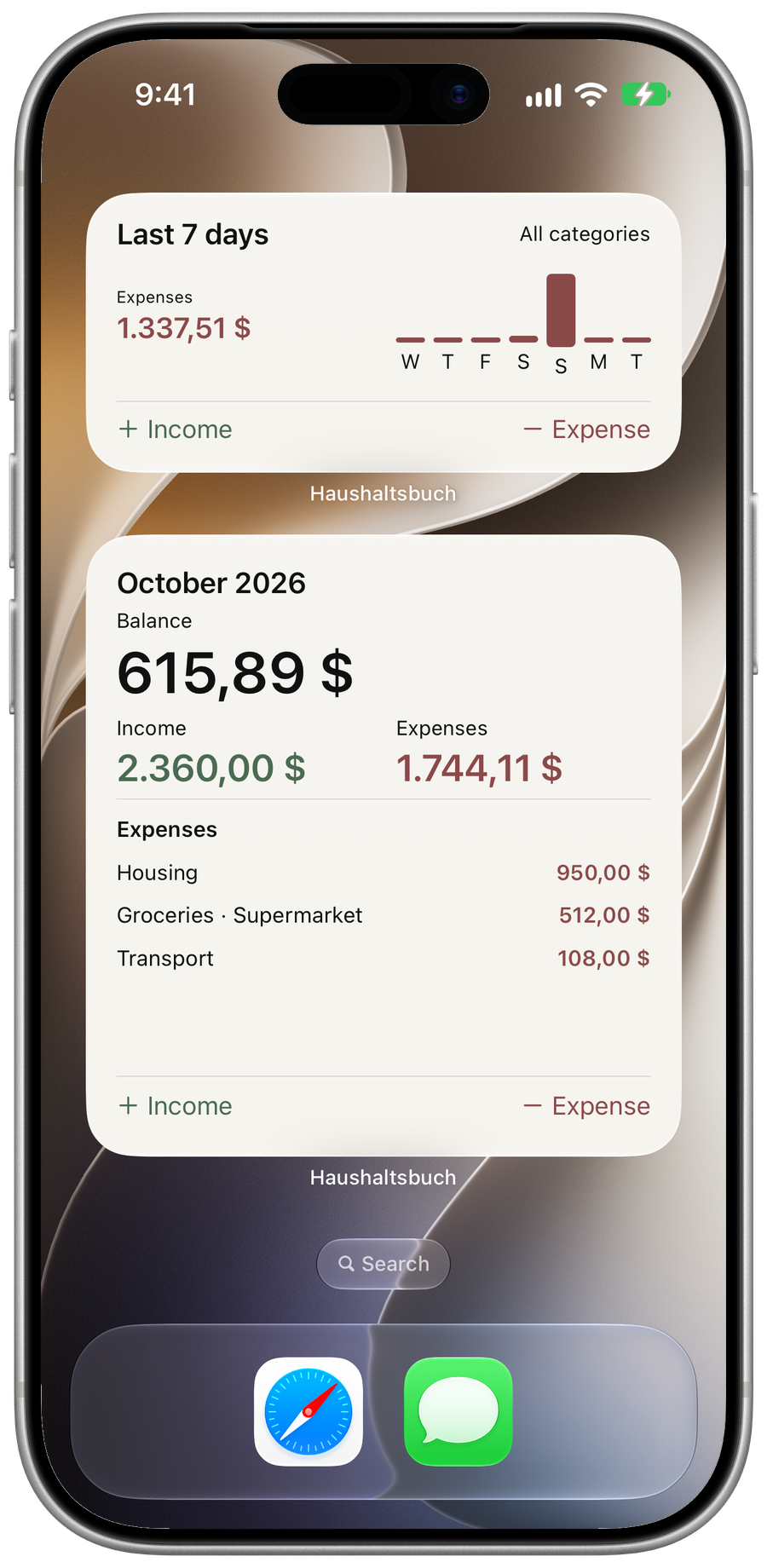
On the Home Screen, Quick entry starts an income or expense entry. Today shows today’s amounts with buttons for a new entry. The monthly overview shows income, expenses and balance, Latest entries lists your most recent bookings, and the weekly overview (Pro) shows each day as a bar, for the calendar week or the last 7 days.
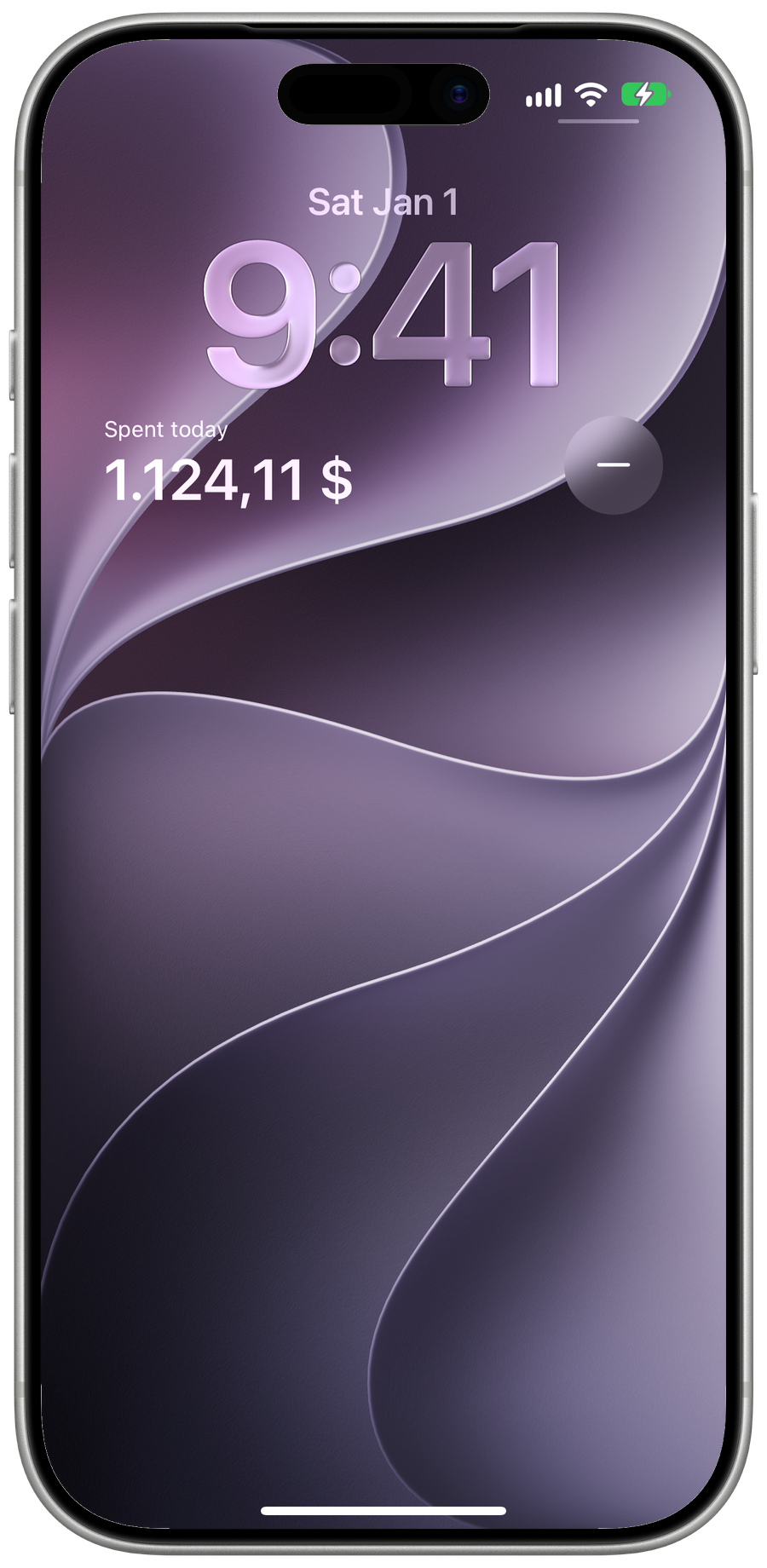
On the Lock Screen, a round shortcut opens a new income or expense entry. Today shows today’s amounts, either below the clock or as a single line above it.
Tapping a widget takes you to the matching place in the app: a new entry, the entries behind a total, or the exact entry from your latest bookings.
Make each widget your own
Touch and hold a widget and choose Edit Widget. Choose income, expenses or both, all categories or selected ones, the period, and whether amounts are shown.
With amounts hidden, the widget keeps its layout but leaves out the figures. That helps on the Lock Screen or whenever others can see your iPhone.
What is free and what Pro adds
Free includes Quick entry, Today on the Home Screen and Lock Screen, this month’s overview and Latest entries, with all categories, one default category or one of your 2 free custom categories.
Pro adds the weekly overview, past months and month ranges, several categories at once, more custom categories, and the large monthly widget with its chart and latest entries. If Pro ends, your widget settings stay saved and come back when Pro is active again.
Start an expense with Siri
Say “Add an expense in Haushaltsbuch” and an empty expense form opens. You enter the amount and category yourself.
In the Shortcuts app, the Review expense action can fill in the amount and category beforehand. Either way, nothing is saved until you tap Save.
How to add a widget
Home Screen: touch and hold an empty area on your Home Screen. Tap Edit, then Add Widget. Search for Haushaltsbuch, choose a widget and tap Add Widget. Later, touch and hold your widget and choose Edit Widget for periods, categories and hidden amounts.
Lock Screen: touch and hold the unlocked Lock Screen. Tap Customize and choose the Lock Screen. Choose Haushaltsbuch in the widget area below the clock; add the inline view through the date area above the clock. Choose the entry shortcut or Today view, tap the added widget to configure its options, then tap Done.